Changelog

Follow new updates and improvements to CVtoBlind.

September 8th, 2026

New

Improved

Every organization thinks about technical skills differently — some teams want a single "Cloud & Infra" bucket, others split it into six.

Until now, CVtoBlind sorted extracted technologies into a fixed, one-size-fits-all list. That changes today: technology categories are now fully customizable, per organization.

Build your own categories

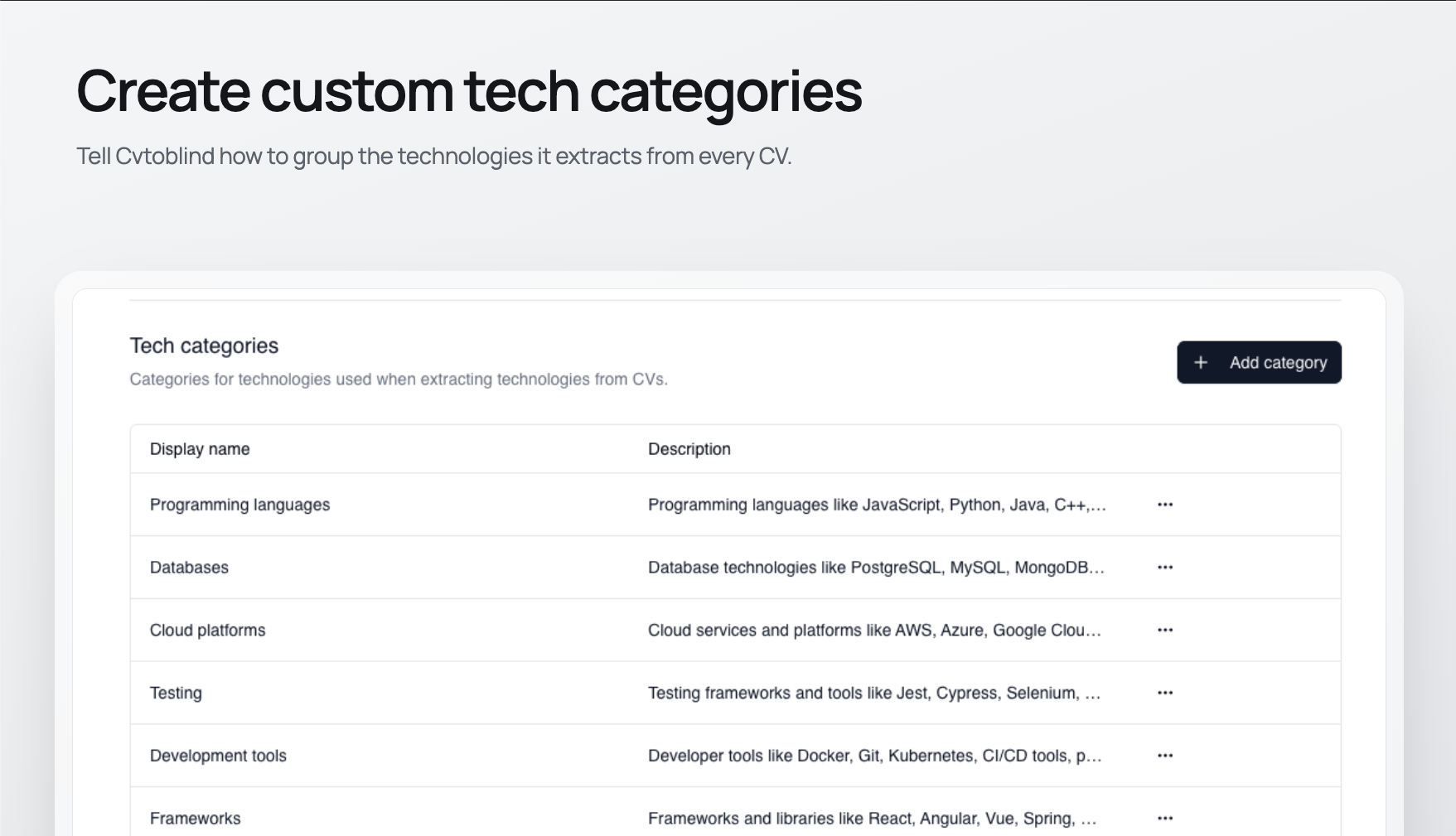
Head to Settings → Organization and you'll find a new Tech categories section. Add a category, give it a display name and a short description, and reorder or rename existing ones to match your requirements.
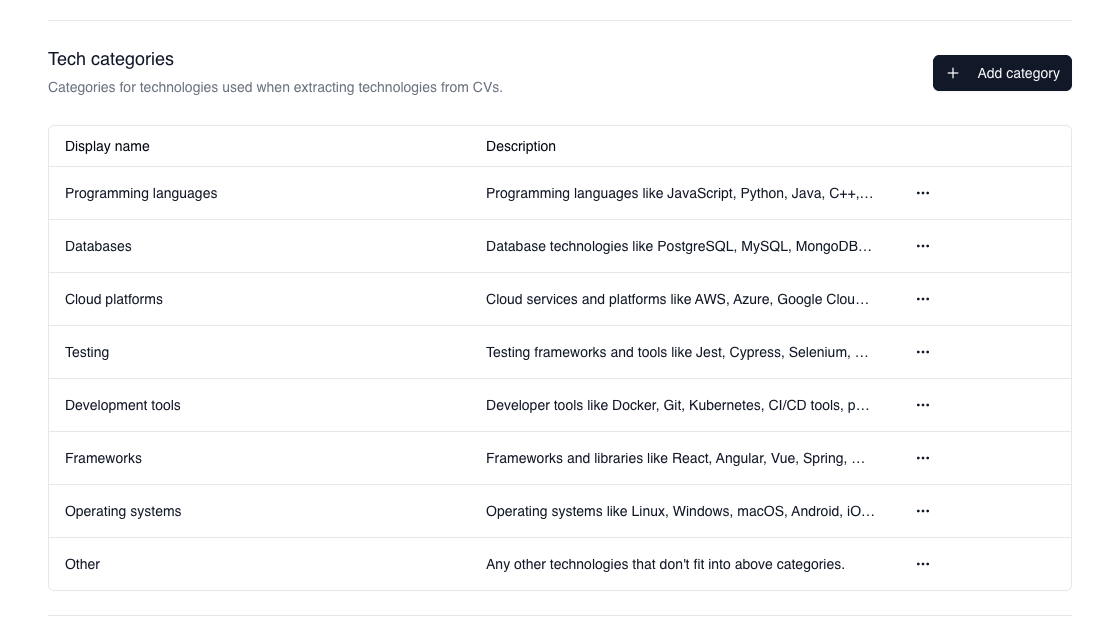
Tech categories table in Settings → Organization

Not happy with results? A one-click Restore default categories action resets everything back to our original set.
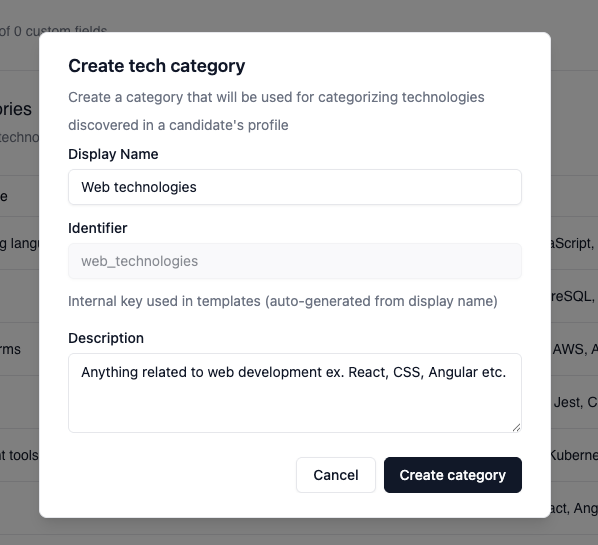
Add category dialog with display name and description fields

Shows up where you're already working

Your categories appear immediately as drag-and-drop buckets in the Technologies section of the profile editor.

And because categorized output only reaches an exported CV once a template references it, we added a "Not in template" badge that flags any category your currently selected template doesn't render — so you'll know before you export, not after a client opens the file.

Two guides to get you there

If you're rolling this out for your team, start with our step-by-step how-to guide — it walks through configuring categories, verifying them in the editor, and wiring your templates up to render them. For the full reference on limits, identifiers, and FAQs, see the full documentation.

Write a comment...

September 3rd, 2026

New

You can now send exported profiles straight to Google Drive — no downloading and re-uploading.

Connect once, in Settings

Head to Settings → Account → Integrations and click Connect next to Google Drive. Each person on your team connects their own Drive account, and you can disconnect at any time from the same place.

Export from the profile menu

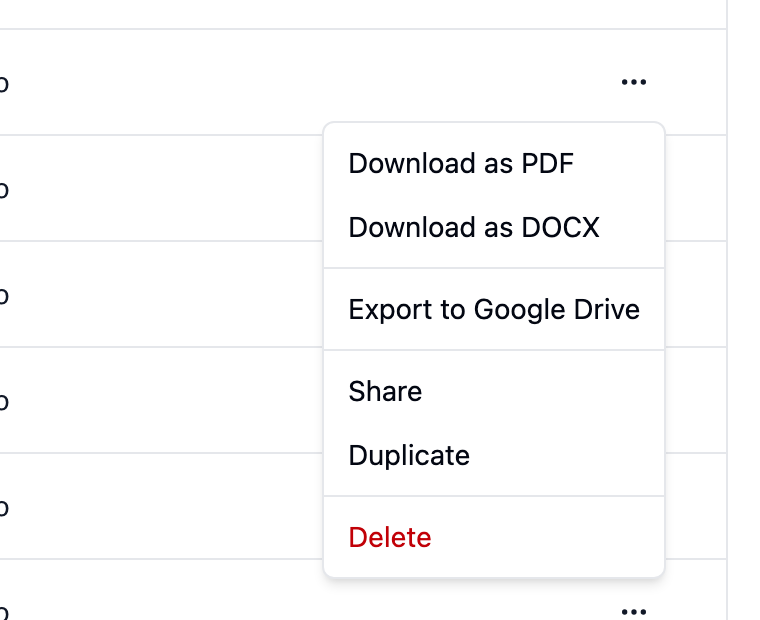
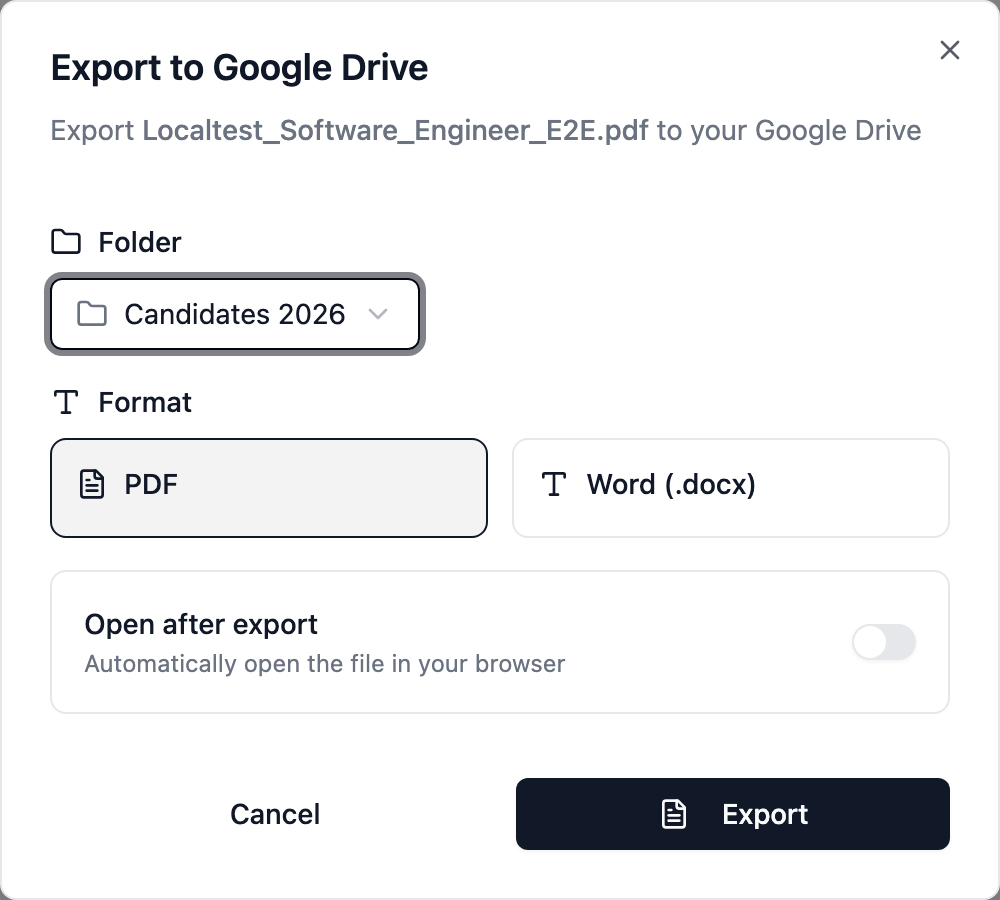
Open the ⋯ menu on any profile and choose Export. Pick a folder, pick PDF or Word (.docx), and you're done. There's also an Open after export toggle if you want the file to pop open in a new tab as soon as it lands.

It remembers where you put things

Your recent folders show up at the top of the folder list, with the last one you used pre-selected. Need somewhere else? "Choose another folder…" opens the regular Google Drive picker.

About permissions

We ask for the narrowest Google Drive scope available (drive.file) — CVtoBlind can only touch the files it creates and the folders you explicitly pick. The rest of your Drive stays private to us.

Full setup and troubleshooting steps are in the help center: Exporting to Google Drive →

Give it a try and let us know how it goes.

Write a comment...

May 30th, 2026

New

Improved

We've launched a dedicated space for everything related to CVtoBlind's future and support — and we want you to be part of it.

Help Center

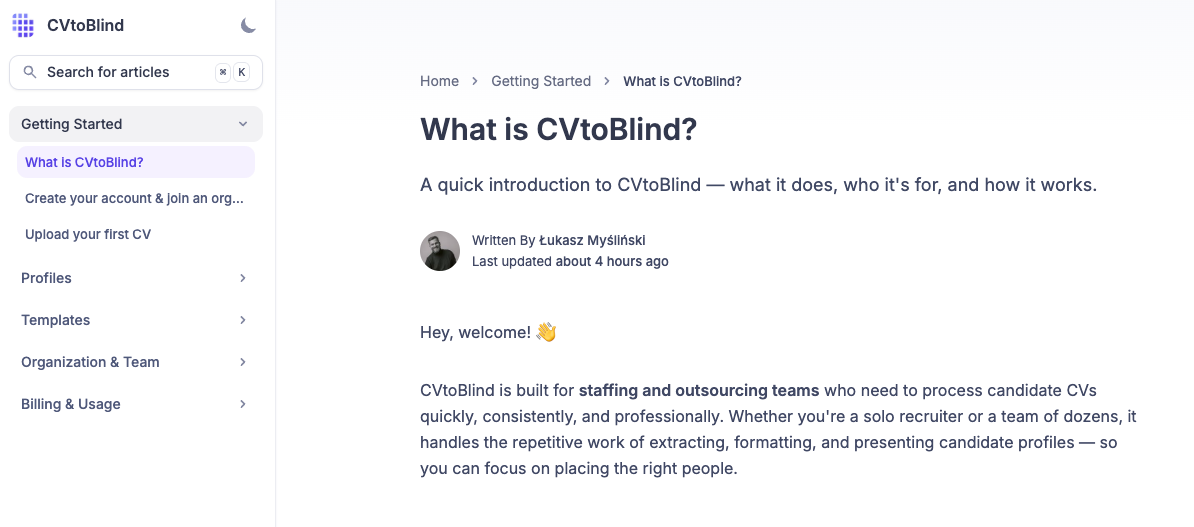
We've rebuilt our documentation from the ground up. The new Help Center covers every part of the product in a clear, task-based structure:

  • Getting Started — from creating your account to uploading your first CV

  • Profiles — editing, exporting, conversion settings, and custom fields

  • Templates — what they are, how to build them, and the full variable reference

  • Organization & Team — inviting teammates, domain verification, and org management

  • Billing & Usage — plans, pricing, and managing your subscription


👉 Visit the Help Center

Public Roadmap

You can now see exactly what we're working on and what's planned next. Our current roadmap includes:

  • Save profiles to Google Drive & OneDrive

  • Profile editor redesign with CV preview alongside the editor

  • Shareable profile links with expiry

  • Online template editor

  • Auto-trigger AI Actions after conversion

  • … and many more to come


👉 View the Roadmap

Feedback & Feature Requests

Have an idea or a feature you've been waiting for? You can now submit and upvote feature requests directly. We review everything and use your votes to help prioritise what gets built next.


👉 Submit feedback


We'll be using this space for all future product updates going forward. If you have any questions, reach out at [email protected].

Write a comment...