CVtoBlind is moving to Sourcemint
When we built CVtoBlind, the goal was simple: turn any CV into a clean, anonymized profile in your own template, fast. It was a great product for its time, and thanks to you it became part of how many recruitment teams work every day.
The market has changed a lot since then, and what teams expect from their tools has changed with it. To keep up, we need to offer you much more than CVtoBlind was built to do. We decided the right way to do that is a fresh start rather than more patches on the old product.
That fresh start is Sourcemint. It does everything you rely on today and gives us the foundation to build what comes next. We know a change like this is work you didn't plan for, so we've done as much of it for you as we could. Your organization and templates are already set up, and switching won't cost you more in the first year.
Key dates
Today: your Sourcemint organization is ready. CVtoBlind is now free for everyone until 31 December 2026, with unlimited conversions.
1 January 2027: CVtoBlind becomes read-only. You can no longer upload new CVs or edit profiles, but you can still open and download everything.
31 January 2027: CVtoBlind is turned off and all its data is permanently deleted. Download anything you need before then.
Your CVtoBlind subscription
We've stopped charging for new usage of CVtoBlind, and we're cancelling all subscriptions. You don't need to do anything.
Monthly and Flex plans won't renew. You'll get one last invoice for your current billing period, and nothing after that.
Yearly plans are cancelled today, and we'll refund the part you haven't used: the time left on your plan or the CVs you haven't converted yet, whichever is higher.
Either way, you can keep converting CVs for free until 31 December 2026.
What is Sourcemint?
For the past months, we've focused on one thing: making sure your move is smooth. Here's what's ready for you today:
Upload a CV (PDF, Word or an image) and get back an anonymized blind CV in your own template. Name, photo, contact details and date of birth are removed, and you decide what stays.
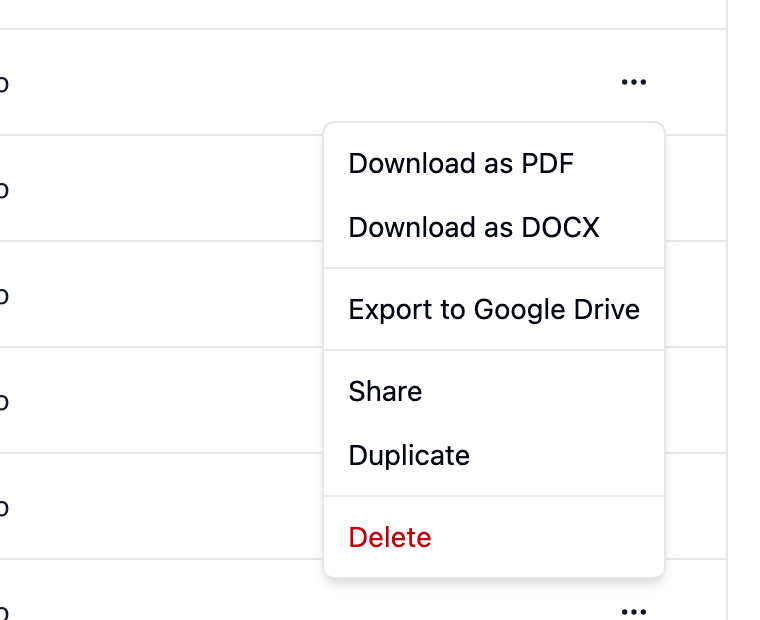
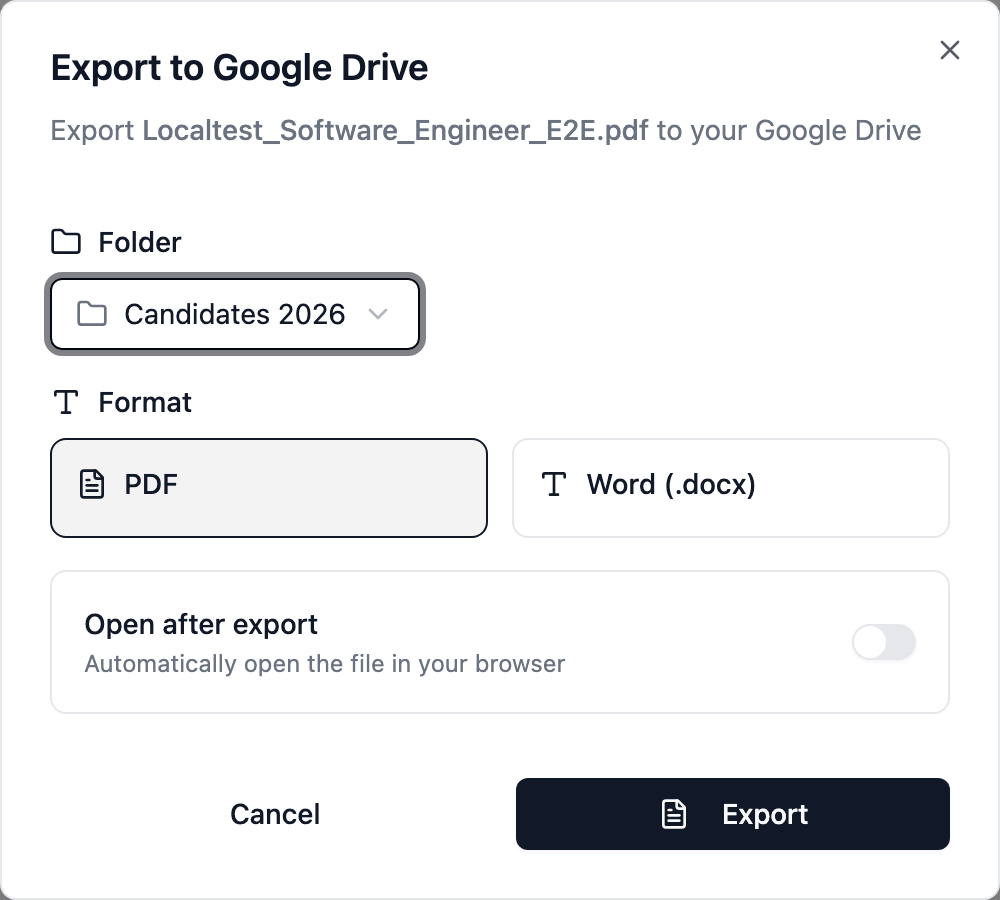
Export to DOCX, PDF or Google Drive, with your logo, fonts and layout.
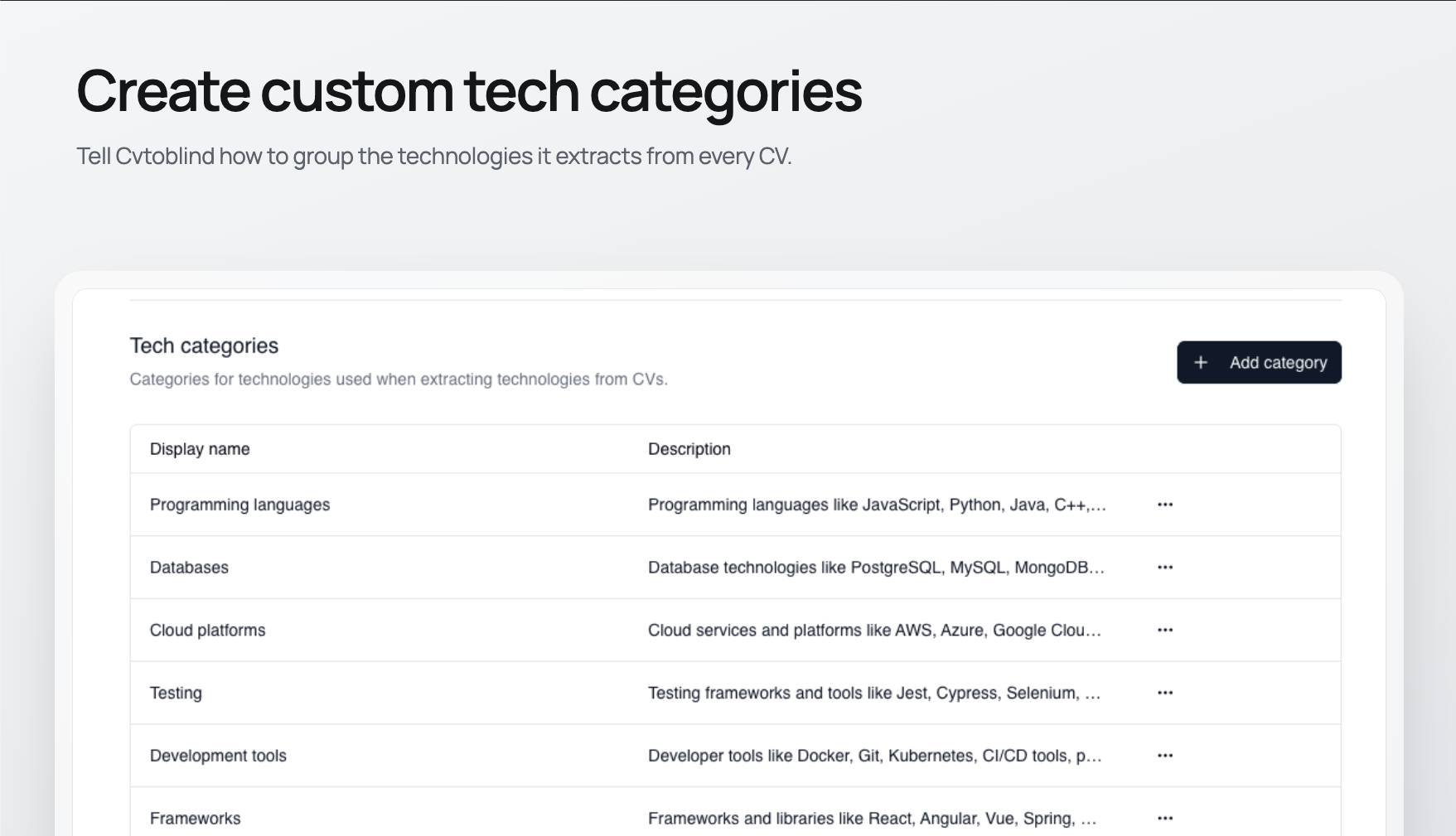
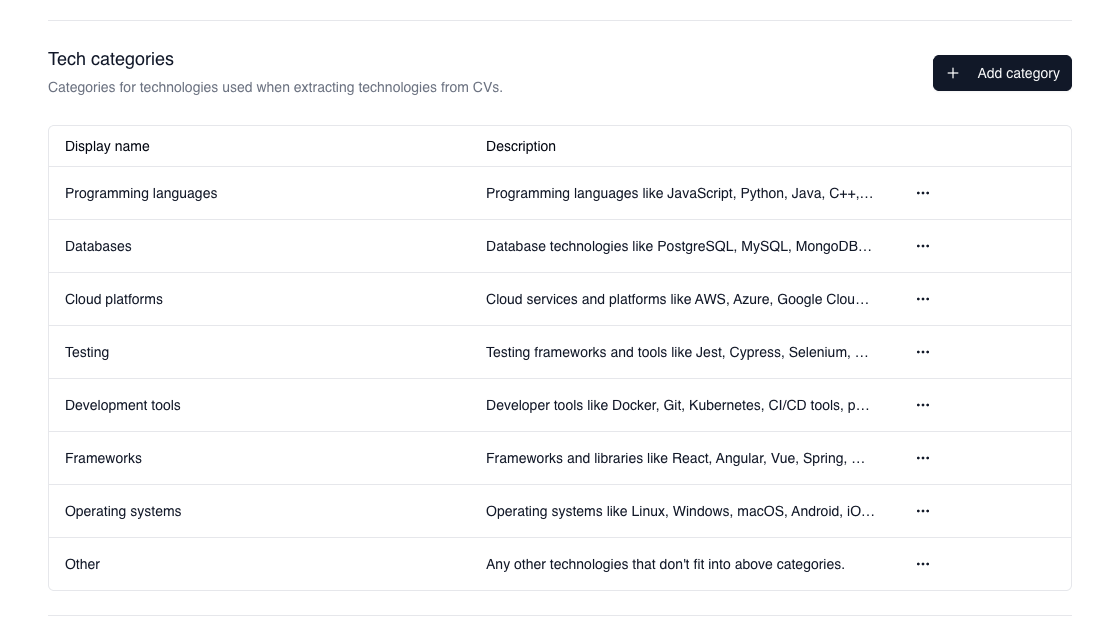
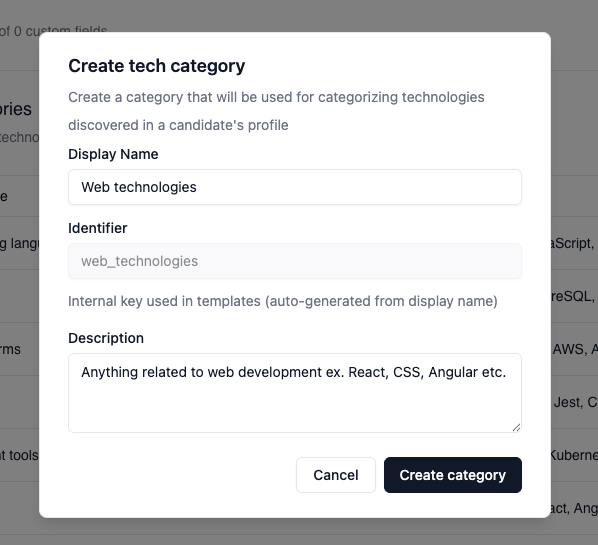
Your custom fields, tech categories, conversion settings and export file name format come with you.
One shared workspace for your team, with owner, admin and member roles, and processing rules set once for the whole organization.
Your data is stored and processed in the EU, Sourcemint is GDPR compliant, and your CVs are never sold or used to train AI models.
How to switch
Go to getsourcemint.com/app/login and sign in with your work email, or with Google / Microsoft. Sourcemint has no passwords, so your CVtoBlind password doesn't carry over.
Your organization is already there, with your recently used templates, custom fields, tech categories, export file name format, conversion settings, and recent colleagues with their roles.
Upload a CV, render it in each of your templates and compare the result with what you're used to. If anything looks off, tell us and we'll fix it.
Invite any teammates who aren't in yet.
Our guide What changes when you move from CVtoBlind explains what's different.
Pricing
Sourcemint is priced per user instead of per conversion. This better reflects how teams actually use the app, and most of our customers will end up paying less than they do today.
If the new pricing would cost you more, we'll give you a discount for the first year, so you don't pay more than you do now.
See the new pricing.
FAQ
What happens to my data in CVtoBlind?
Until 31 December 2026, you can use CVtoBlind as usual.
From 1 January 2027, CVtoBlind is read-only: you can still open your profiles and download them as DOCX or PDF, or export them to Google Drive, until 31 January 2027. After that, all data is permanently deleted.
Are my profiles moved to Sourcemint?
Not automatically. If you'd like your existing profiles in Sourcemint, send us a message in the CVtoBlind chat and we'll help you migrate them.
Do my templates carry over?
Yes, your recently used DOCX templates are copied to Sourcemint automatically. Please run a test export with each one before you send anything to a client.
Is anything going away?
AI Actions, the reusable CV prompts, are not part of Sourcemint. They never worked as well as we hoped, and we're working on a better replacement.
When do I get my refund?
If you're on a yearly plan, the refund goes back to your original payment method within 10 days. Your bank may take a few more days to show it.
Who can I ask for help?
Send us a message in the CVtoBlind chat. We reply personally within 24 hours, we'll help you move across, and we're happy to jump on a call. Or just send us an email at [email protected]
Thank you for trusting CVtoBlind with your work all this time. We can't wait to show you what we build next.
Lukasz from the CVtoBlind team